
Quitting Safari and Moving Work Into the Dock
The test began on a Monday at 8:40 a.m. Before quitting the browser, every open tab was exported to a single dated bookmark folder so nothing was lost. At that moment, the browser held 38 tabs across two windows, 9 of them pinned. Four were duplicate instances of the same project board, opened on different days and never closed. Hitting Command-Q cleared the slate, leaving only the standalone Basecamp and HEY companion icons active in the macOS Dock.
After several weeks on a 16 GB Apple-silicon laptop running macOS Sequoia 15.3, the trade-off was clear. Dedicated companion windows reduced tab-hoarding drift and clarified Command-Tab switching, though they introduced real friction around external URL routing and multi-window spatial management. Browser re-launches became less frequent as the test progressed.
The rules were set before day one. The project tracker and the email client would run only as standalone companion apps, while the browser could be opened on demand but had to be quit again before the next morning block. Architecturally, both companion apps are desktop shells around the vendor's existing web app. Each bundles its own Chromium-based rendering engine rather than borrowing the system browser's engine. Account sessions, cookies, and cache live inside each app's isolated container, completely separate from the default browser profile.
Where Single-Purpose Windows Sharpened Focus
Muscle memory was tracked by watching which keystroke reached for each tool during daily design and engineering blocks. In week one, checking the project board still meant reaching for the browser, then hunting through the tab strip. A deliberate spatial layout fixed this. The project tracker and the email client were placed as the two Dock icons immediately left of the Finder divider, and each was assigned to its own desktop Space through the Dock's Options menu.
After the initial adjustment, reaching the project board took one Command-Tab press, without the previous tab-strip scan. Mission Control reinforced this separation by showing the project tracker and email as two named, separately thumbnailed windows, whereas previously they were invisible tabs buried inside a single browser thumbnail. Sequoia's native window tiling—triggered by dragging a window to a screen edge or holding Option while hovering over the green traffic-light button—worked identically on companion windows as on any native Mac window.
Stripping away the browser chrome changed cognitive habits during deep work. With no address bar visible, the reflexive habit of typing two letters and letting autocomplete jump to a news site had nowhere to fire. That habit was caught repeatedly in the browser but had no outlet inside the companion windows. Dock badge counts also stayed accurate across the test, including after sleep/wake cycles. In the previous browser setup, a pinned tab for the same tool sometimes showed a stale unread count after the browser's memory-saving feature had discarded it in the background.
The Friction of External Links, Files, and Multitasking
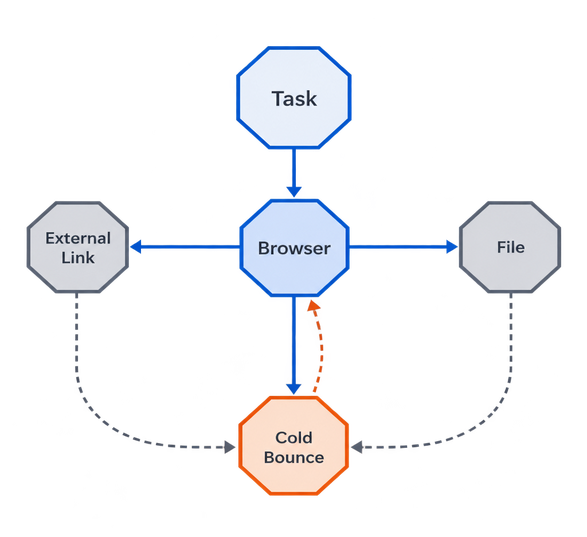
What happens when a single-purpose communication window meets a workflow built on interconnected web artifacts? Clicking an external link—such as a Figma prototype, a GitHub pull request, or a staging URL—inside a companion window hands the request off to the system default browser. When that browser was closed, a cold launch added a short delay before the page began loading, and system focus stayed in the browser rather than returning to the project board. If the default browser had been assigned to a different desktop Space, the click could also trigger a Space switch, sliding the view away from the project tracker entirely.
Link bouncing was the most frequent complaint, so one workaround got a real trial. The system default browser was briefly switched to a minimal secondary browser that launched faster, to make each bounce cheaper. The workaround was dropped. That secondary browser had no saved logins for the code-hosting service or the design-prototype tool, meaning every bounce ended at a sign-in wall instead of the target page. The batching habit that replaced the workaround was simpler: copy URLs into a scratch note during the morning block, then open them all in one browser session after 11:30. Bounces dropped to a single deliberate context switch.
Multi-Window Juggling and Local File Handoffs
Cross-referencing two projects simultaneously exposed the spatial limits of wrapped apps. Without middle-click-to-new-tab behavior or a shared tab strip, comparing two boards meant opening a second companion window with Command-N and tiling the two side by side; comparing three projects meant juggling three free-floating windows—a departure from the document-tab patterns outlined in Apple's Human Interface Guidelines for macOS window management.
Local file handling showed a similar split between web behaviors and macOS Finder expectations:
- Inbound uploads: Dragging a PNG or PDF from Finder directly onto a comment field uploaded the asset normally, matching standard browser behavior.
- Outbound drags: Dragging a file attachment from the companion window back out to the Desktop did not reliably produce a local file.
- Silent downloads: Clicking to download an attachment sent the file straight to
~/Downloadswith no in-app download shelf or bounce animation to confirm completion.
Evaluating the Companion Architecture Through a Mac Designer's Lens
To move beyond subjective impressions, a designer's audit used a fixed checklist of Mac conventions, repeated later in the test to catch anything missed. The checklist covered menu bar completeness, standard shortcuts, text-selection behavior, context menus, and scrolling feel. Standard keyboard shortcuts behaved as expected across both apps: Command-F (find), Command-comma (settings), Command-W (close window), Command-N (new window), and Command-plus or Command-minus (zoom).
However, web roots showed through in several interface details. Interface labels such as sidebar headings could be selected with a click-drag just like static web text. Right-click menus on links offered browser-style items rather than a native Mac context menu, and some menu bar submenus were thin compared with a fully native AppKit application.
Memory was checked in Activity Monitor at the same moment each afternoon, around 3 p.m., using the "All Processes" view to sum the main process, helpers, renderer, and GPU processes for each app. Each companion's combined process tree used a few hundred megabytes during the afternoon checks. In the browser setup, the same two tools as tabs sat inside a browser whose total footprint ran to several gigabytes, though most of that belonged to the other 36 tabs.
Wrapper Memory Economics: Running both companion apps means paying for two bundled rendering engines, which is a fixed overhead a single browser with two tabs would not duplicate. The memory savings come from closing everything else, not from the wrapper being lighter per tool.
This hybrid architecture represents a pragmatic trade-off. The wrapper approach lets a small team maintain one web codebase that ships to the browser, Mac, Windows, and Linux at the same time. New features can reach the Mac app alongside the web version, trading away a purist native feel for cross-platform parity.
Deciding Which Apps Deserve Permanent Dock Real Estate
The final Dock layout came from the friction log rather than aesthetic preference. Toward the end of the test, every tool was placed in one of two columns. The first column held tools whose badge or notification changed what happened in the next ten minutes. The second held tools mostly used to open, follow, or compare links. Only tools in the first column with low link volume kept a Dock slot. This setup paid off when external-link clicks from inside companion windows were infrequent; for QA testers, support staff, and researchers who repeatedly click through staging URLs, cold-browser bounces can erode the focus gain.
Applying this ten-minute badge test clarified the desktop environment. The asynchronous email client and the project tracker for high-level check-ins earned permanent Dock slots. Conversely, the design-prototype tool, the code-hosting service, and staging environments were returned to the browser, where they remained closed during the 8:30 to 11:30 morning focus block and were opened together for link triage after 11:30. Even when a software vendor does not ship a dedicated wrapper, you can apply these same design patterns on macOS Sonoma and later: open the web tool in Safari and choose File > Add to Dock to generate a standalone web app with its own window, Dock badge, and Command-Tab entry.
To test this boundary in your own workflow, run a five-day sprint protocol starting tomorrow morning:
- Remove your primary project tracker and email client from your pinned browser tabs today, and install their standalone Mac companion apps (or create Safari Dock web apps for them).
- Quit your web browser completely with
Command-Qevery morning before 8:30 a.m., working exclusively inside your standalone windows until 11:30 a.m. - Keep a plain-text tally of every forced browser re-launch and its exact trigger during those morning blocks, then review the log on day five to evict any high-bounce tool back to the browser.








Comments
No comments so far.
Join the Discussion